Cloud Agents for Normies: Claude Code in the Cloud
The same hourly website check, but as a script in a GitHub repo that a cloud agent runs on a schedule
Part of Cloud Agents for Normies, where I try to run simple agents in the cloud so I can keep my laptop shut.
To recap: I’d like to know when OpenAI makes an announcement on their Product releases page without ever loading it up in the browser myself. Let’s have an agent check every hour.
The scheduled task version got a B. It ran in the cloud and it ran on time, and the whole thing lived inside one chat.
This one already looks like it’s going to fail the normie portion of the test pretty hard, since you have to know about programming things like a code repository and what GitHub is, not to mention have a GitHub account.
Oh well, here we go.
1. Connect GitHub
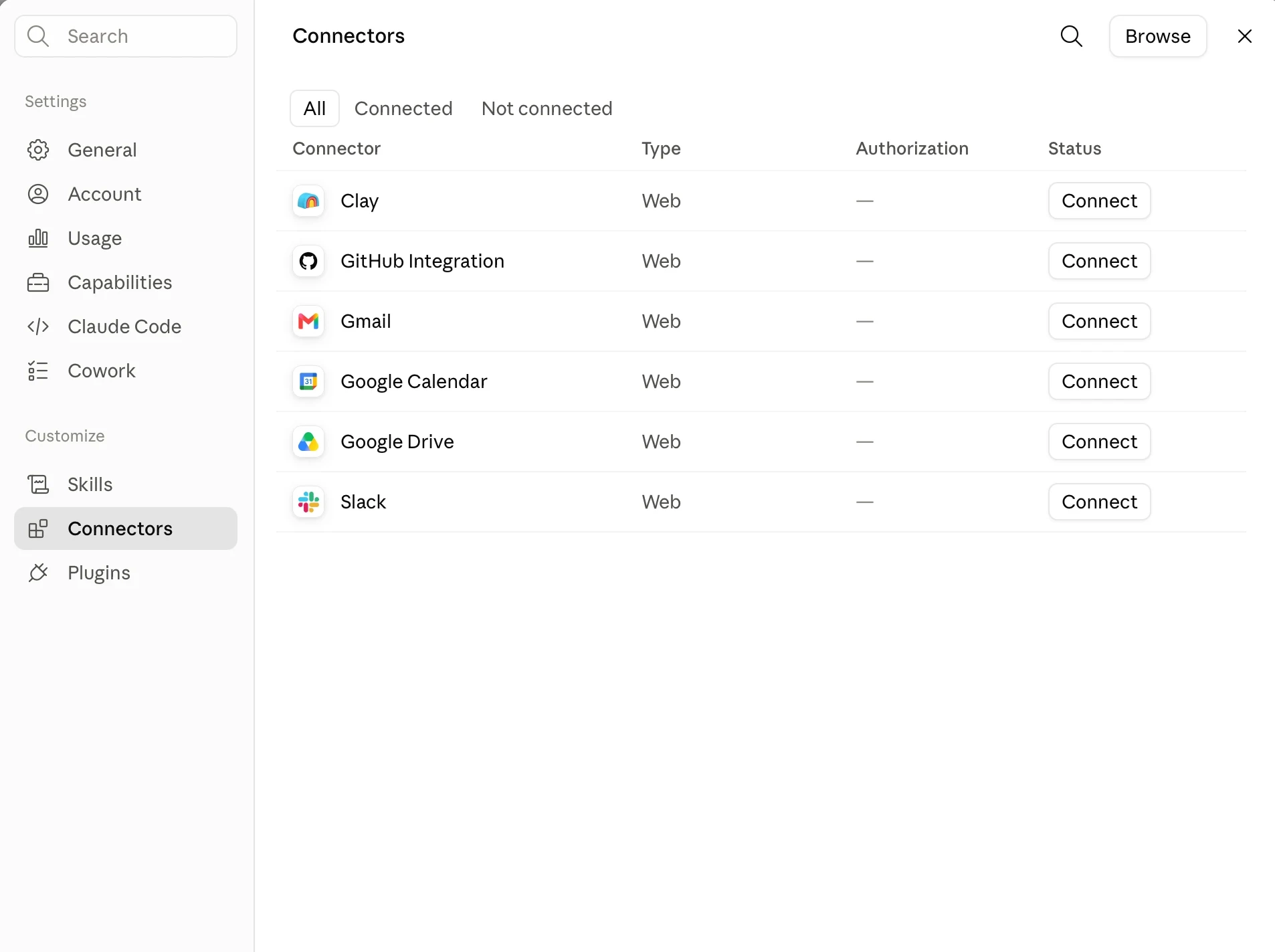
Go to claude.ai/code after signing in. It’ll prompt you to connect GitHub, and if not, then go to Settings → Connectors. Find GitHub Integration in the list and click Connect.
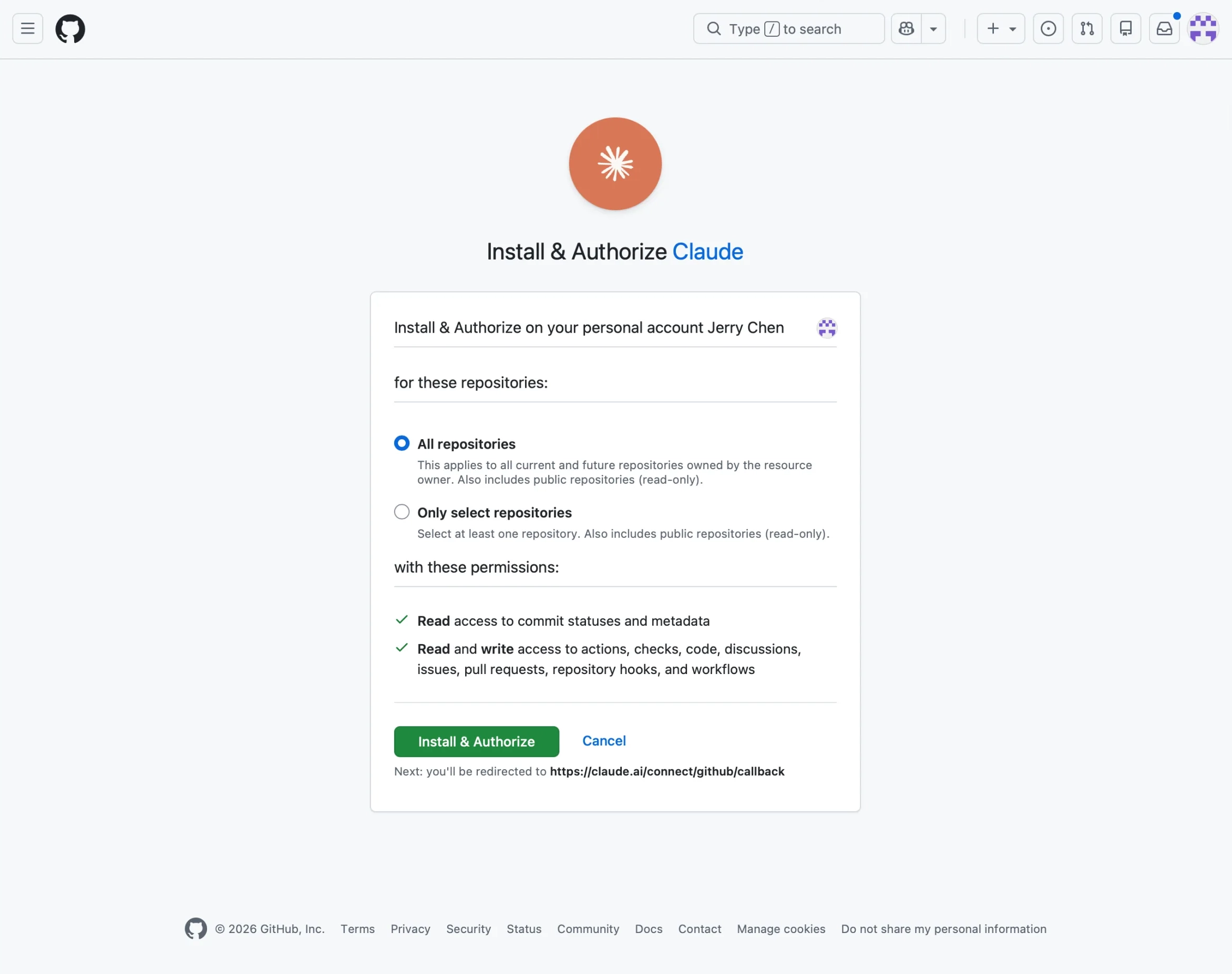
That hands off to GitHub, which then asks what you’re installing and where:
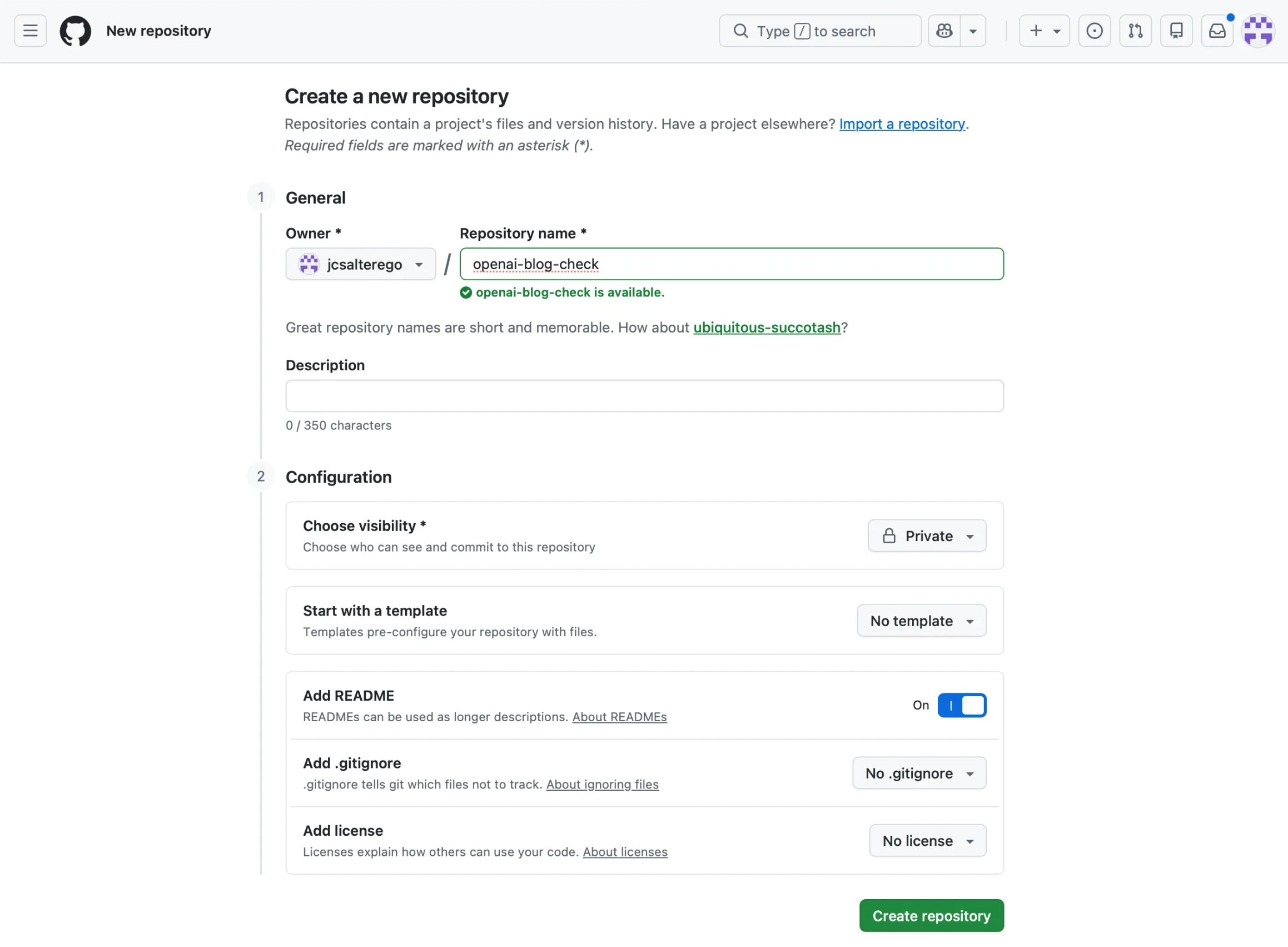
Cloud sessions only work on repositories that already exist, so make the one we’re going to use: go to github.com/new, name it openai-blog-check, make it private, and check the box to add a README. The README is a placeholder of course, but it will start a new code branch, which is the bare minimum.
2. Create a cloud environment
Every cloud session runs inside a cloud environment: a saved bundle of network access, environment variables, and a setup script. It’s like a Mac Mini in the laundry room. Because our task involves the internet, we have to tweak the network access level. It may sound daunting but bear with me.
-
At claude.ai/code, click the cloud icon in the row above the message box. That’s the environment selector; there’s no settings page for it.
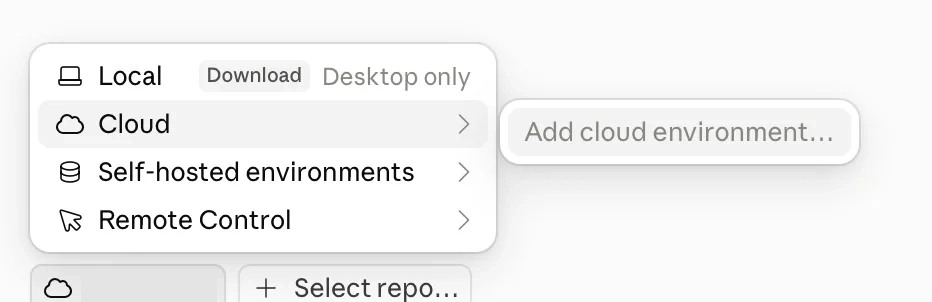
Hover Cloud and the option to add one appears beside it. -
Click Add cloud environment.
-
Name it something like
openai-watch. -
Set Network access to Custom, and put one domain per line in Allowed domains:
openai.com
*.openai.com
The
*means anything, sowww.openai.comorblahblah.openai.comwould match, just in case. -
Check Also include default list of common package managers so you keep the Trusted list too. This will help us run the script we make Claude write.
-
Leave Environment variables and Setup script empty.
-
Click Create environment.
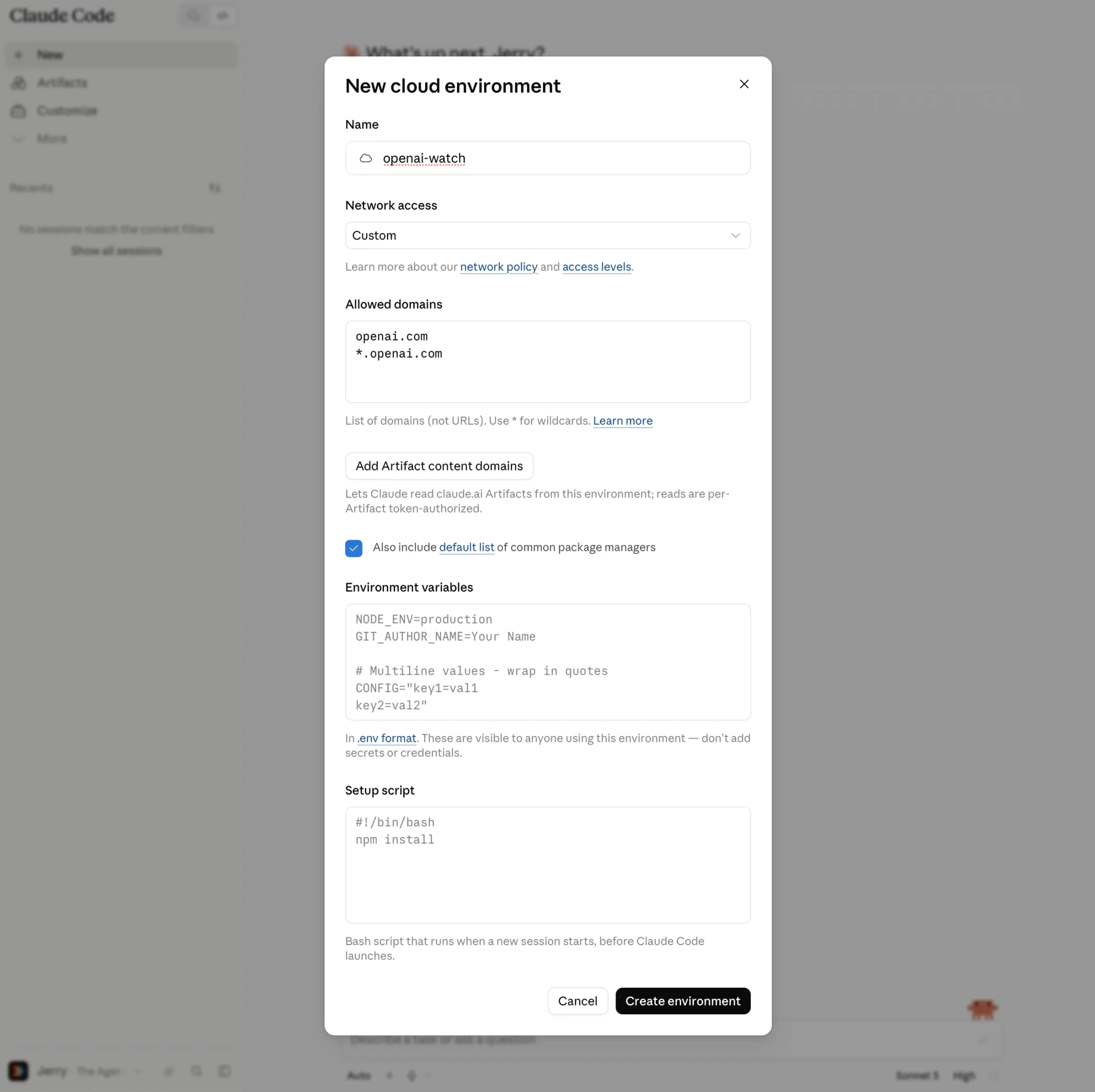
Once this is defined, we use the openai-watch for all our cloud things.
3. Ask for the script
Back at claude.ai/code, click the repository selector above the input box and pick openai-blog-check (that’s our code repository). Confirm the cloud icon says openai-watch (that’s our environment). Then paste something like this:
Write
check.py, a Python 3 script with no third-party dependencies that fetches https://openai.com/news/product-releases/ and pulls out the list of posts — title, URL, and date for each.Keep a
seen.jsonfile in the repo root holding the URLs it has already reported. On each run, print any post that isn’t inseen.jsonyet, one per line, then add it. Print nothing at all when there’s nothing new, and exit 0 either way. If the page can’t be fetched or the parse finds zero posts, print the error to stderr and exit 1 — I want a loud failure, not a quiet “no news.”Add a short README section explaining how to run it and how to reset
seen.json.
(How do you know to write something like this? You ask Claude how you would instruct Claude to create a Python script to fetch https://openai.com/news/product-releases/ for the purposes of this task. Whew.)
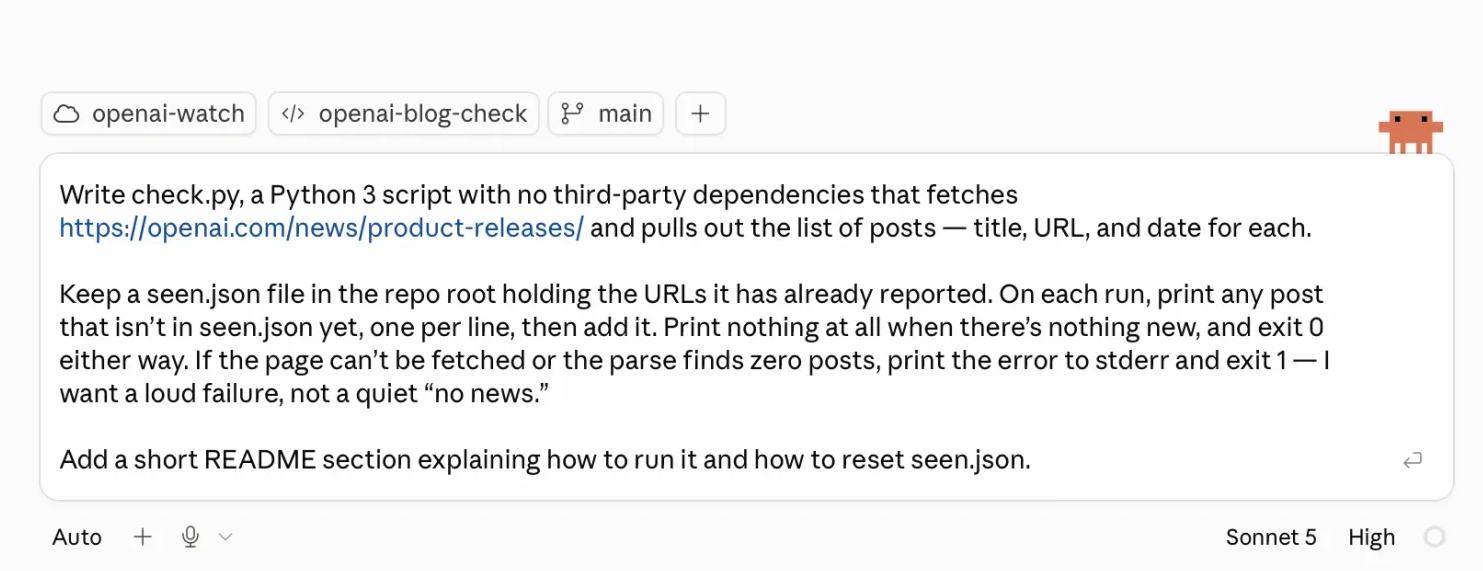
The session boots (starts) a container, clones (makes a copy of) the repo, and starts working.
It was pretty slow, especially with the “set up a cloud container” bit. Maybe it was time of day, maybe a watched cloud container never sets up, but it required a few page refreshes throughout. Not great.
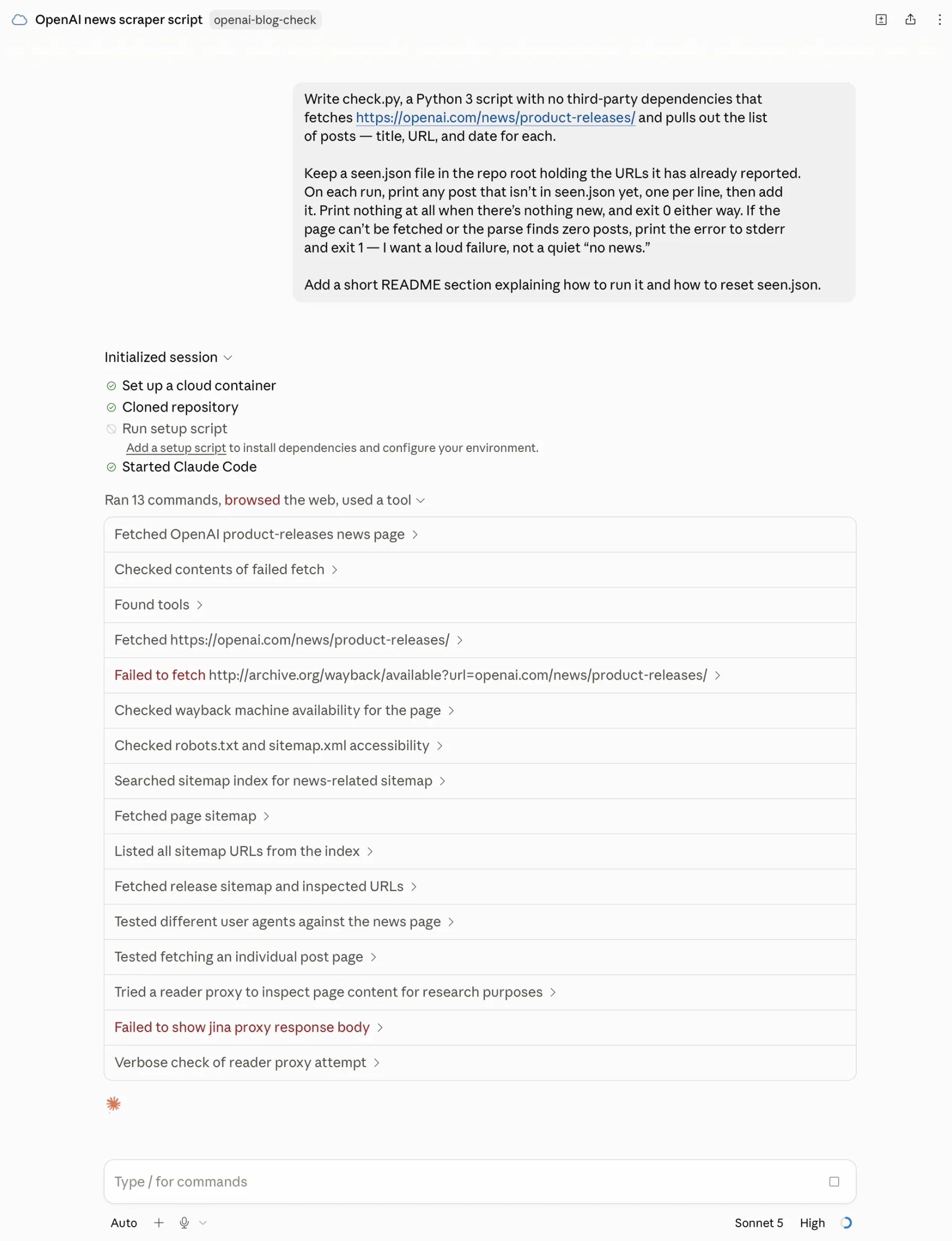
Anyhow it looks like the news page is behind Cloudflare, which is a Content Delivery Network (CDN) that guards against scraping and crawling and all that (pretty standard these days), so my simple script fails. It’s curious how we did NOT run into this with either of the scheduled tasks. Anyway, it did figure out that there was a generic RSS feed that was available and offered it as an alternative:
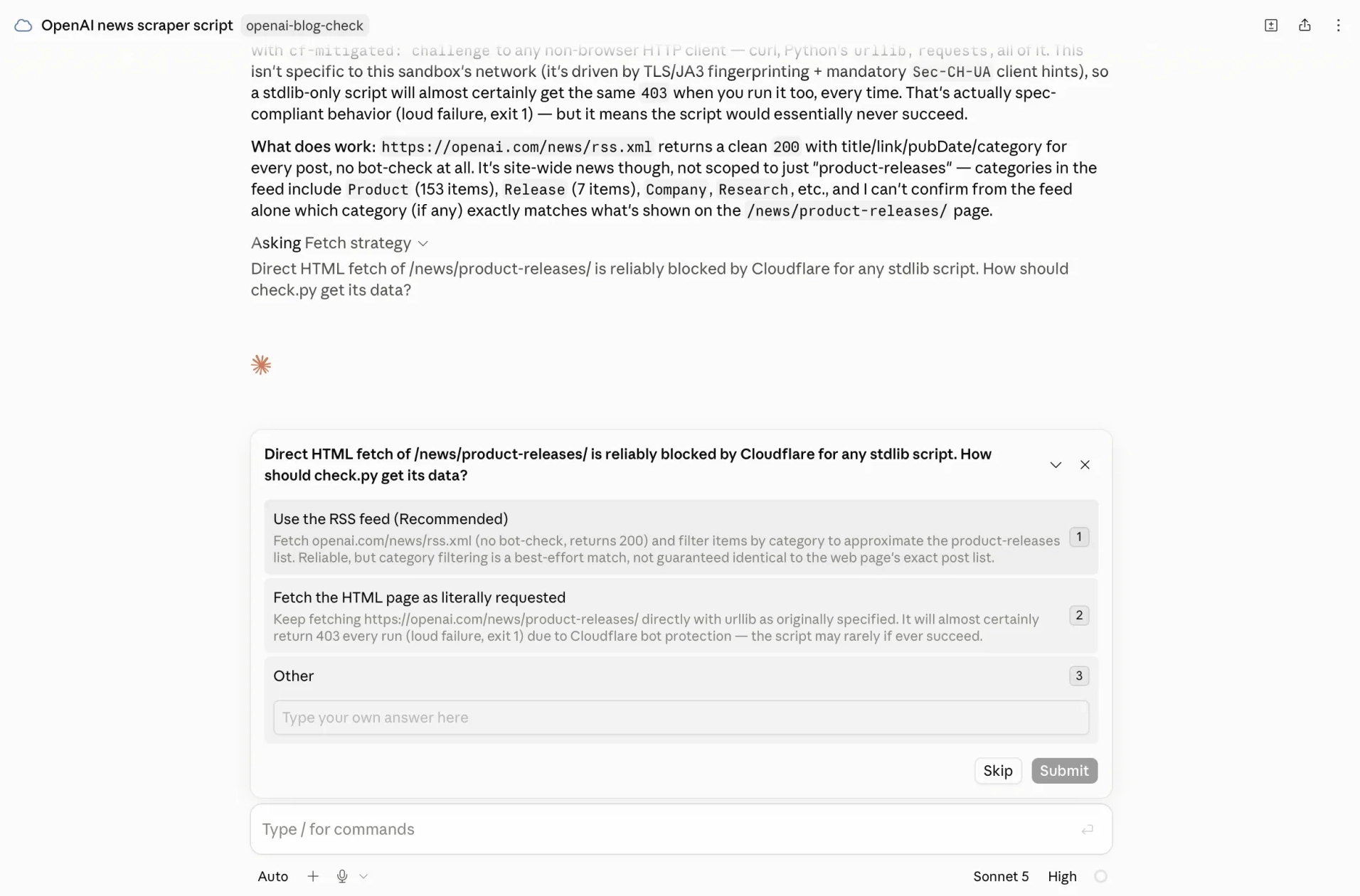
The RSS feed it found returns clean data. Fantastic.
4. Merge it
Claude works on its own branch, that is, a workspace where it can make code changes. However, we want to merge the code into the main branch if it looks good. It looks like it added 386 lines and removed 1 line:

Then, in the session:
Merge the PR into main and delete the branch.
Or if you’re feeling adventurous, you can have it create a PR (Pull Request), go to GitHub, and merge it yourself.
5. Put it on a schedule
Now that we’ve got the code working, we need to add a routine in Claude Code. Go to claude.ai/code/routines and click New routine.
- Name:
openai-blog-check - Instructions: the prompt below
- Repositories:
openai-blog-check - Environment:
openai-watch— again, not Default - Trigger: under Select a trigger, choose Schedule and pick hourly
- Connectors: everything you’ve connected is included by default. Strip it down to nothing, or to just Slack if you want the ping below.
The instructions should look something like this:
Run
python3 check.pyfrom the repo root.If it prints nothing, do nothing else — this run is a no-op and that is the expected case.
If it prints one or more new posts, open a GitHub issue in this repository titled “New OpenAI product release” whose body lists each new post as a markdown link with its date. Then commit the updated
seen.jsontomainwith the message “Record seen releases” and push.If the script exits non-zero, open a GitHub issue titled “openai-blog-check is broken” with the stderr output, and do not touch
seen.json.
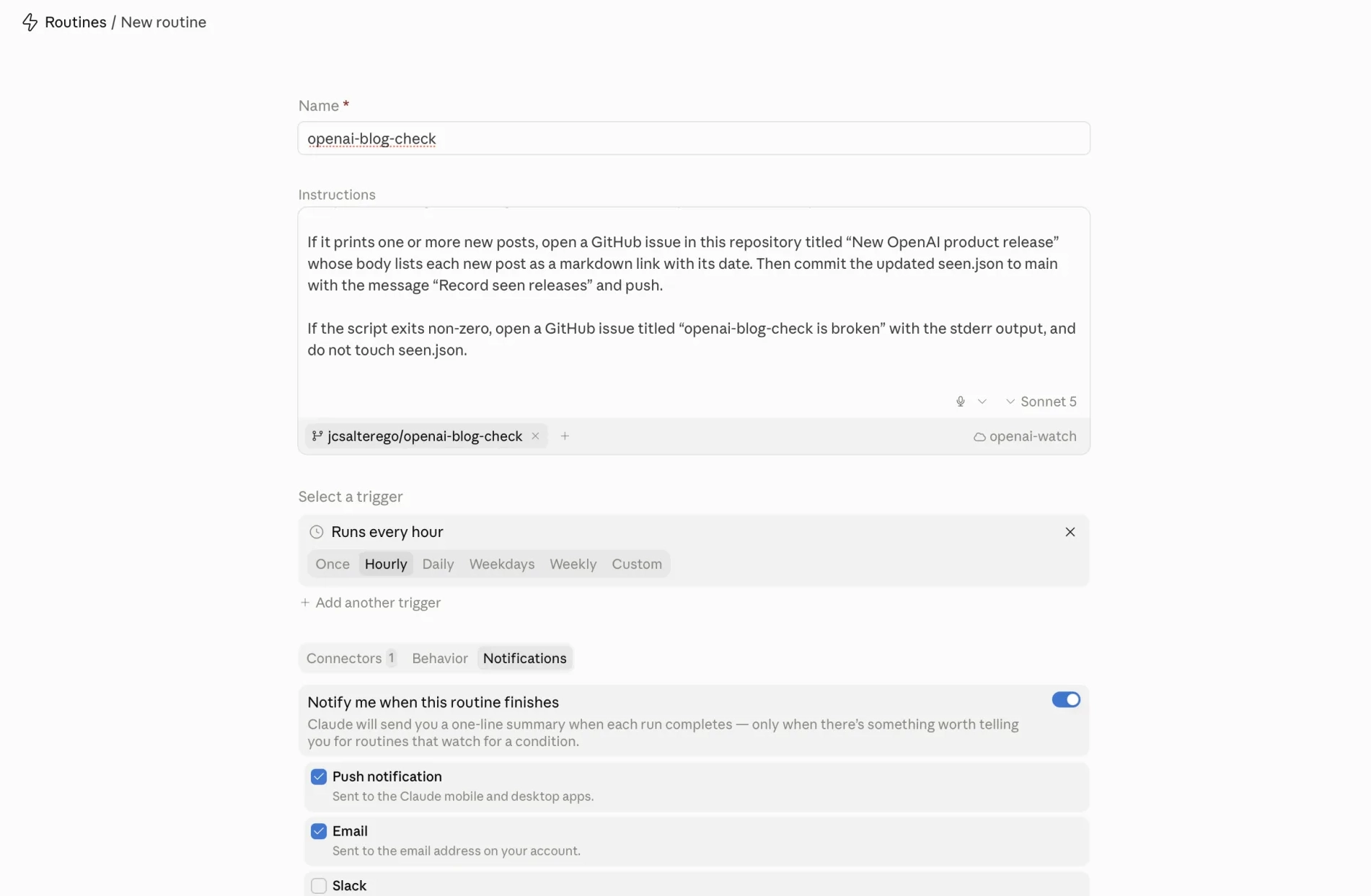
Click Create, then Run now on the routine’s detail page rather than waiting an hour to find out.
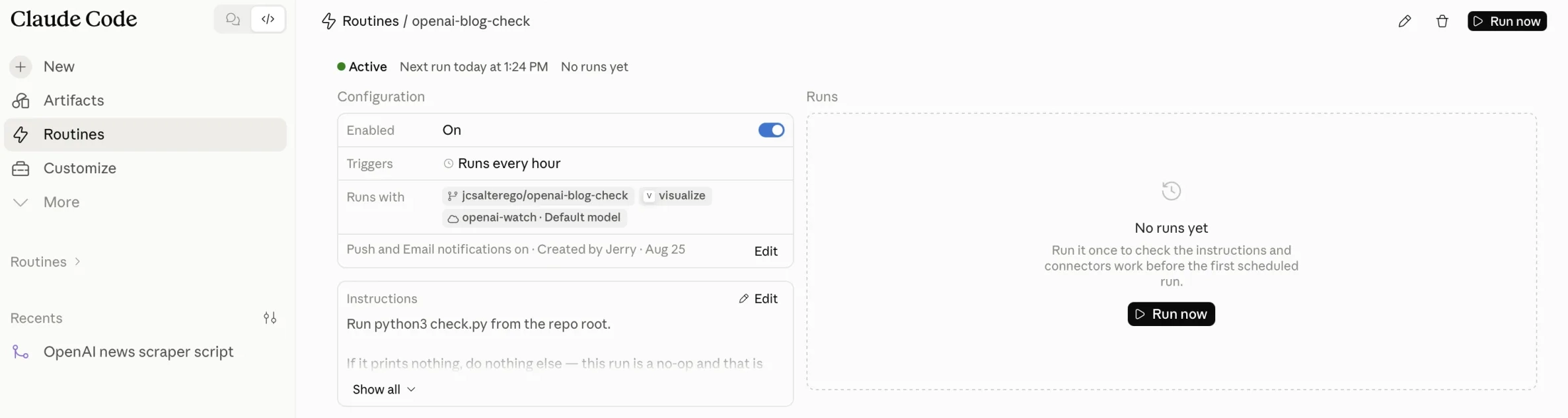
The first run is the interesting one, and this one did nothing at all — which is exactly what should have happened. seen.json was already current, so check.py printed nothing and exited 0, and the agent stopped there instead of inventing work to justify the run.
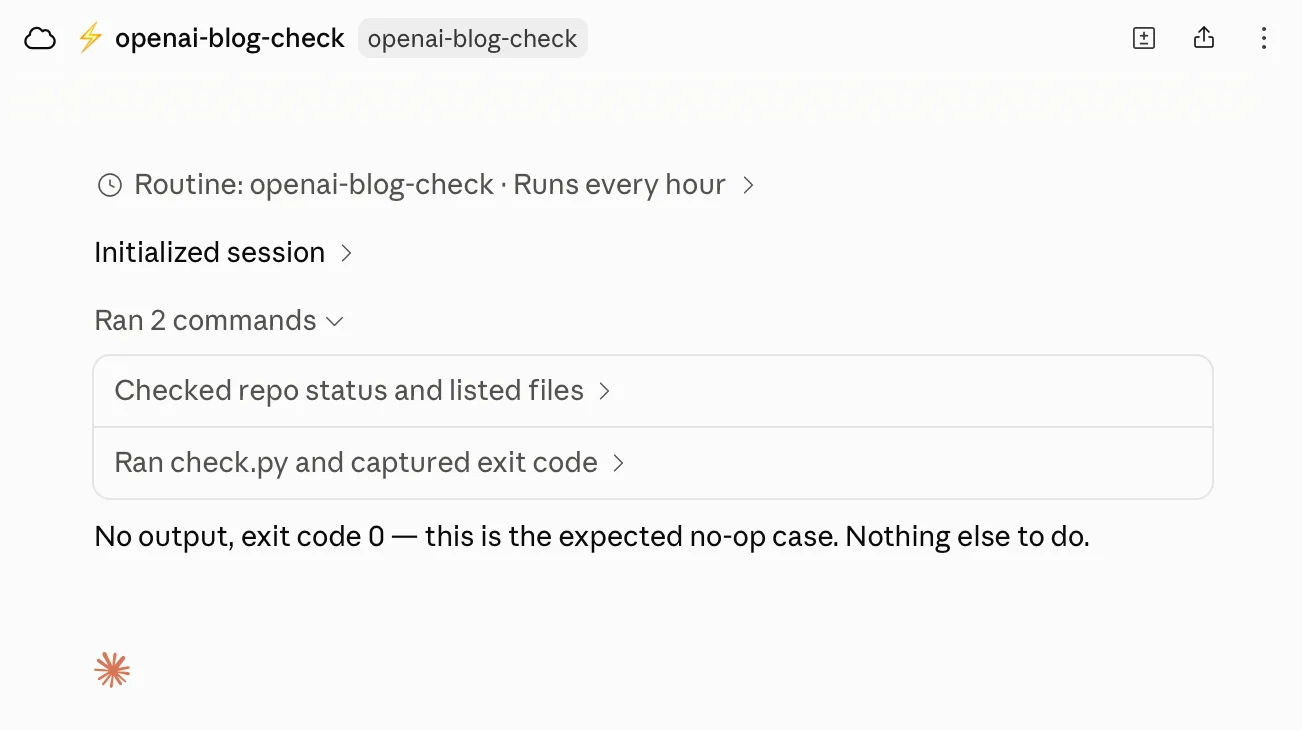
Since we’re looking for changes, this is basically “nothing has changed.” For the purposes of this speedrun, this is fine. If I were an enterprising fellow, I’d really dig into the script and simulate a “new post” situation.
Conclusion
Following the rubric:
- Remote — yes
- Shareable with my team — yes and no. The code is shareable. The routine runs on my account though.
- Schedule-able and active — yes
- Learning and self-modifying — not quite in this state. For the routine it’s possible I could try “fix any errors you might run into,” but that is untested.
- Easy to configure and run — absolutely not. As Claude Code suggests, this is absolutely coding and not normie-friendly.
Claude Code in the cloud
It really failed the normie component and took a long time.
Back to Cloud Agents for Normies for the full list of what I’ve tried and how each one scored.